By Mick Moignard
There's been one question that has been asked over and over again by Notes developers: "How can I parameterise a Notes view selection?" The answer was always "You can't" because it is the server that maintains the view, and at the time the server does the view, there's no opportunity to customise a view for one particular user.
But, actually, since Notes 6 you can customise view selections at the point of display. There are two ways to do this, both of which are reliant, basically, on being able to categorise the view in question.
Embedded views
The first approach is to use a single category in an embedded view. This one works both in the Notes client and on the Web.
I used an embedded view on a project for a customer a bit back. The application here was quite simple; we extracted some data about software installed on each PC from a Tivoli database, making one Notes document for each machine. We could also have created one document per software item per machine, but we didn't. We added the computer owner's name to each document, because some people had more than one computer. We then compared the software items and versions reported by Tivoli against the company's approved software list, and marked items as to whether they were approved or not.
There were views in the database that enabled administrators to see all the data, but what we wanted to do was be able to show each user just what was recorded for them, and to do that, we used a single-category embedded view.
We first created a view categorised by the computer owner's name. How you generate that category column is up to you. In our case, it was the field containing the person's name, but so long as you get a category value, how you do it is up to you. All the single-category check does is match against the final category value. Figure A shows you the view when opened directly in a Notes client. You can see that it is categorised by the user name.
FIGURE A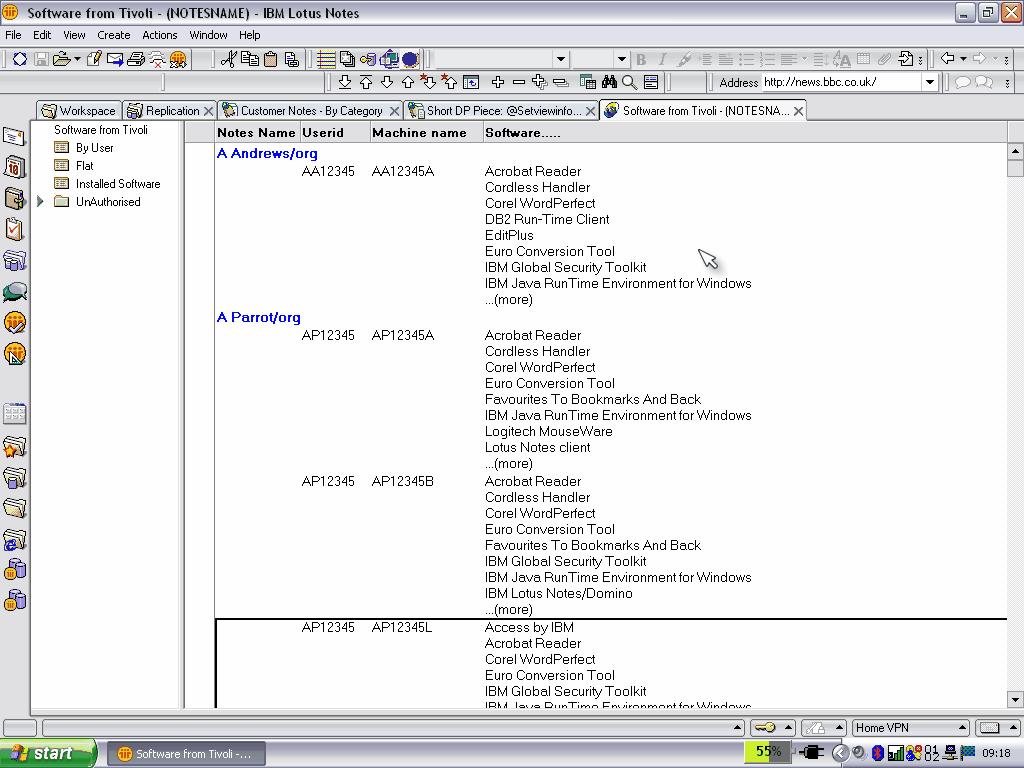
You can see the view categorised by user name. (click for larger image)
Next, we need to embed this view onto a form or page. Figure B shows this view embedded into a page.
FIGURE B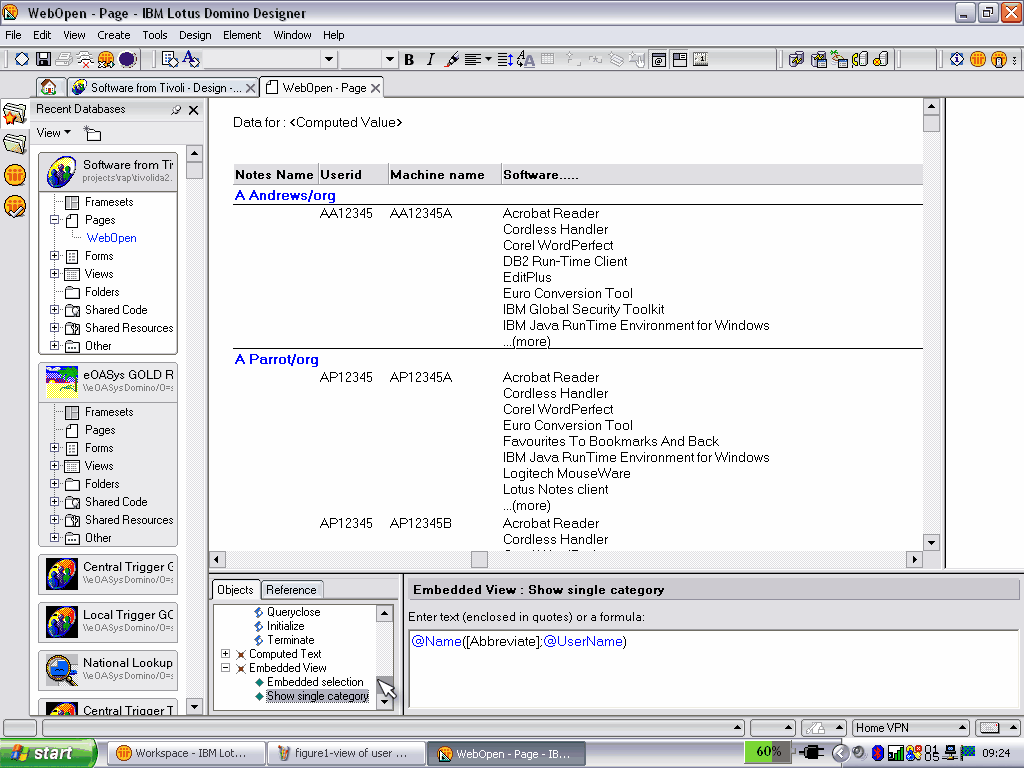
Next, embed the view onto a form or page. (click for larger image)
At the top of the page is a computed text field that displays the current user name. Look at the Designer's Objects/Reference pane in the middle bottom of the screenshot. You can see, at the end of the list, the embedded view program events, and "Show Single Category" is highlighted.